


You can move money and pay bills in a matter of minutes while managing your money anywhere you have an internet connection. PEFCUOnline is the best way to take care of your finances anywhere, anytime.
- Monitor account activity and always know your balance.
- Use Bill Pay to schedule one-time or recurring payments.
- Manage all your bills in one convenient location.
- Transfer funds to your other PEFCU accounts as well as other financial institutions.
- Send money directly to friends and family with Zelle®.
- Access electronic versions of your monthly account statement, safely and securely.
Enroll in PEFCUOnline
- Enroll in Online Banking by clicking this link.
- Click on the "Get Started" button and enter the required information.
The login credentials that you created will work for both PEFCUOnline and PEFCUMobile. If you have any questions, please call our Member Contact Center at (800) 226-6673 or send a secured message using the Messages option in PEFCUOnline or in PEFCUMobile.
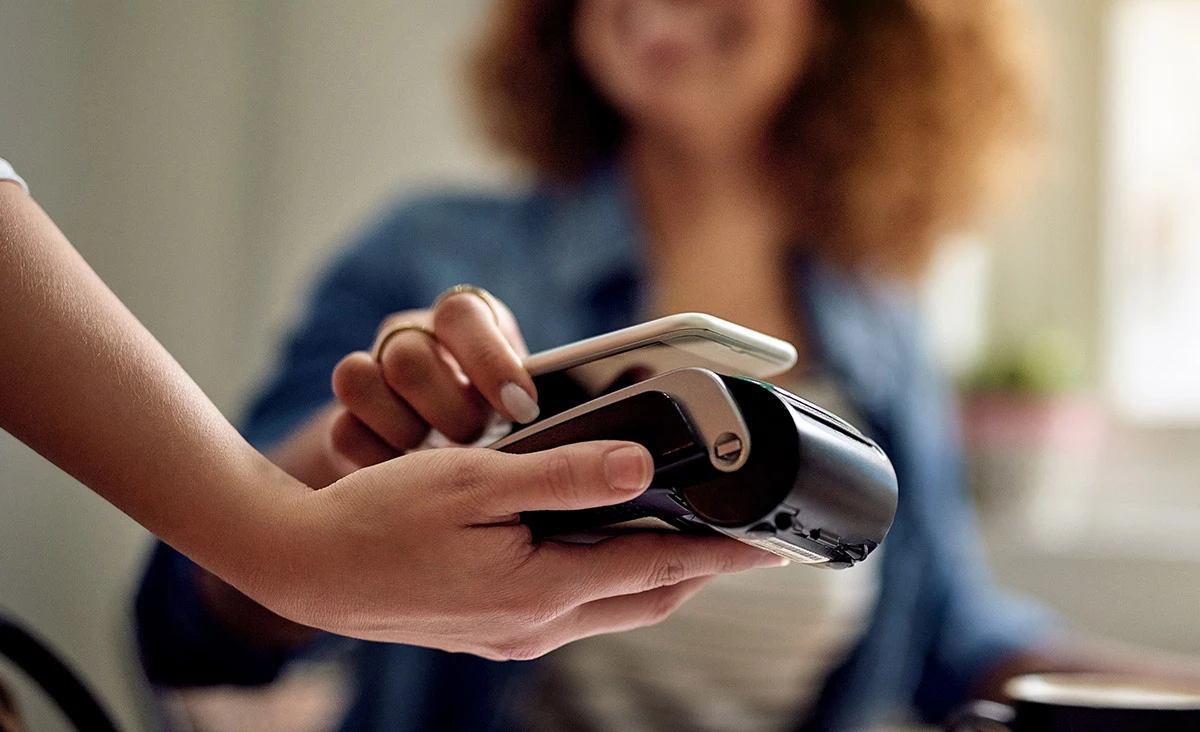
You can do everything in PEFCUMobile that you can do in PEFCUOnline, making it a time-saving financing tool you'll love to use.
- Move money securely between your PEFCU accounts and accounts with other financial institutions.
- Send money directly to friends and family with Zelle®.
- Easily find your username and update your password with our Forgot Username/Password feature.
- Find nearby ATMs and PEFCU branch locations and get directions immediately.



If your account qualifies, you can deposit checks into your PEFCU savings and/or checking accounts using our app and your phone's camera. It only takes a few minutes and you can easily track and view all mobile deposits in the app. Here's how to do it:
- Endorse the back of the check, including:
- Required accountholder signature(s)
- PEFCU deposit account number
- The exact words "For Mobile Deposits Only at PEFCU"
- Within PEFCUMobile, select the 3 vertical lines in the upper left corner and select Mobile Deposit.
- Select the deposit account from the drop-down list.
- Enter the dollar amount of the check.
- Press the "Front of Check" icon to take a photo of the check to be deposited. Repeat with "Back of Check" icon and take a photo of the endorsed check. Note: All corners of the check must be visible in photos.
- Press the “Submit” button to complete your mobile deposit. If deposit is successful, a confirmation message will be displayed.